Monday, June 20, 2011

An Overview of buzztouch, A Mobile App CMS for Non-Programmers

The other day I stumbled on a Make Use Of article about buzztouch, a "iPhone, iPad, Android app builder and content management system."  Since we're researching options for creating cross-platform mobile applications, and the article indictated that it was worth checking out, I decided to sign up and give buzztouch a spin.

buzztouch is designed to let non-programmers build a mobile app on the buzztouch website using a collection of web-based forms.  The app-building interface prompts you to create certain items, like a launcher icon for the app, a banner image for the home screen, and an "info" page for the app, but you choose what other content you wish to provide from a drop-down list of different components.  One component lets you create a screen of formatted text using CKEditor, while another lets you create an app screen using HTML, CSS, and Javascript.  There are components for pulling in remote content such as web pages, YouTube pages, streaming audio and video files, and RSS feeds.  One component lets you pinpoint one or more locations on a Google Map with brief location information that a user of the app can then use to get driving directions to those locations from their current position.  Even though I was casually playing with the system, I was able to create an app using several of these components in under two hours.

Once you've created the app, you can then download the native source code for the app:  you're provided with separated source code downloads for IOS and for Android.  The source code comes in a .zip file, which also contains a readme file with instructions on how to compile the source code for that particular platform and create the native app.  It only took me a few minutes to create an Android app from the source code, and it only took me that long because I had to provide a Google Maps API key to enable the mapping component I'd added (the readme provided exact instructions on the changes I need to make it the code to use the key).  I had my IOS developer colleague compile the IOS version of the app, and it was also smooth sailing for him.  The resulting app on the Android platform looked a little rough simply because of the generic design elements, but the IOS version looked pitch-perfect.

The first time you access any component or screen in the mobile app, there is a pause as the app retrieves the content or content instructions from buzztouch then caches it for local use.  This is where the content management system aspect of buzztouch kicks in:  any changes you make to the app on the buzztouch site get pushed to (or pulled by, not sure which) the mobile app.  So the app owner doesn't need to recompile and update the app through the App Store or the Android Market in order to make content changes.  If the mobile device doesn't have a network connection, then the cached content is used.

So what's my overall take on buzztouch?  I think that if you need to build a mostly informational mobile app, something that serves the same purpose as a mobile-optimized website, then buzztouch is a compelling option because of how easy it is to create the app and then update the content.  Even if your long-term strategy is to redesign an existing "desktop"-optimized website to be mobile-friendly as well, a buzztouch app could fill the void until that goal was reached.

If you need to build a mobile app that's more interactive, one where the user can send and receive custom data, then buzztouch is at best an incomplete solution.  There are no buzztouch components for collecting data (though the app itself will capture GPS info from the device in order to map where the app has been used, which is both useful and slightly disturbing), but you could probably use the Custom HTML component to create a web form that transmitted data via a regular form submit or via AJAX.  And there are as yet no components that let you access device-specific functions like the camera or accelerometer.

On the other hand, if you are capable of doing some IOS or Android coding, the native code provided by buzztouch could serve as a starting point for adding additional functionality:  the buzztouch folks seem to be open to folks using the generated code to advance their learning of native app programming.

So overall, I'm impressed with what buzztouch has done so far with the direction they've taken, and I hope they continue to improve on the platform.

Friday, June 10, 2011

For CFSelenium Users: An Ant Script to Transcribe Your Tests For Multiple Browsers

The easiest way to create a CFSelenium test case is to use the Selenium IDE plugin for Firefox to compose the test, then export the test using the export formatter Bob Silverberg included in the CFSelenium project.  You end up with a test that can be run against Firefox but can be further customized to your needs.

Of course the beauty of CFSelenium is that it lets you run those tests against browsers other than Firefox, to conduct cross-browser testing.  But who wants to create multiple copies of the original tests, or edit the test files whenever you want to check them against another browser?

Not this guy.

So I went ahead and created an Ant script that will take the CFSelenium tests generated for Firefox and transcribe them to work for other browsers I wanted to test against.  The script includes configuration properties that allow you to customize the browser settings to your environment.  For example, I needed the script to be able to rewrite my Internet Explorer tests to run IE on a virtual machine rather than on localhost.  I also took what I learned about capturing screenshots using CFSelenium and added a nice screenshot management feature to the script:  if you add one or more captureScreenshot or captureEntirePageScreenshot statements to your tests, the script will make sure you're using the correct statement for the particular browser, will rewrite the statement to place the screenshot files in a particular directory, and will add code that will incrementally name the screenshot images so you can take and preserve multiple screenshots for one or more tests.

I've put this Ant script up on GitHub at https://github.com/bcswartz/CFSelenium-Cross-Browser-Converter-Ant-Script.  The Ant file itself provides a lot of guidance on how to configure and use the script and some hints on using CFSelenium in general.  Hopefully it's usable even by folks who aren't completely comfortable with Ant.  I myself am still something of an Ant noob:  I'm sure there are more elegant ways of writing this script, and Ant gurus are welcome to fork the GitHub repo and make improvements.

Tuesday, May 24, 2011

CFSelenium News: No Need To Start Selenium Server Separately Anymore

In my earlier blog post on how to install and run CFSelenium, my steps included directions on copying the .jar file for the Selenium-RC/Selenium Server application to an easily accessible location and then starting your CFSelenium testing session by executing that .jar file from the command line.

I'm happy to report that anyone using CFSelenium in conjunction with ColdFusion 8 or 9 can skip those particular steps.  Marc Esher (of MXUnit fame) recently contributed code to the CFSelenium project that enables CFSelenium to start the Selenium Server (if it's not already running) anytime you run a test, and stops the server once the test is complete.  This code is now part of the latest version of CFSelenium that can be download via the CFSelenium GitHub page.

Unfortunately, when I revised the tag-based, CF 7/8-friendly versions of the CFSelenium files to incorporate Marc's code and ran it against CF 7, I found that CF 7 apparently could not start and stop the Selenium Server via the new code.  So ColdFusion 7 users will still have to start Selenium Server from the command line, but otherwise CFSelenium still works in CF 7.

Monday, May 23, 2011

Integrating Mura with the Jasig Central Authentication Services (CAS)

I've already posted most of this information on the Mura forums, but I wanted to post it here as well for anyone looking for information on this topic.

With the blessings of my boss, I've been playing around with the ColdFusion-powered Mura content management system to see if it might be a good CMS option for us.  From what I've seen so far, Mura is a well-thought out CMS system that is both powerful and easy to use, which is a difficult balancing act.

One of the things my boss wanted me to investigate was whether or not we could tie Mura in with our single sign-on solution, which is CAS (Central Authentication Service), a Jasig project originally created at Yale.  When a user tries to access a page or a site that requires them to authenticate, they are redirected to the CAS server and enters their LDAP-based user id and password on the CAS login page.  If they successfully authenticate, the CAS server redirects them back to the original site and stores a token as a cookie in the user's browser.  If the user visits a different website secured by CAS, the cookie allows them access to that site without the need to log in again.

Mura provides a plugin architecture that allows developers to intercept certain Mura events and run their own code.  A number of Mura shops have created plugins that intercept the Mura login events in order to tie in with their in-house directory and authentication servers, but those login events are triggered by the admin and user login forms built into Mura.  I couldn't go that route:  I needed to circumvent and replace the Mura login form(s) with the CAS login form and have Mura log in the user based on the credential information returned by CAS.

After some digging into the code and some trial-and-error, I came up with a way to authenticate Mura administrators via our CAS system.  First, I created admin user accounts in Mura where the username matched the username/user identifier returned by a successful CAS login.  Then I created a Mura plugin that would fire with the OnGlobalRequestStart event with the following event handler:


...The code in this plugin will only execute if the user navigates to /admin/index.cfm (without any URL query parameters) and the "mura" struct in the session scope contains an empty userId key.  Without these conditionals, the login code will run at times when you don't want it to, like when the user is trying to log out or when saving page edits (apparently saving content changes involves navigating to the admin/index.cfm page without URL query parameters).

The NetId is the user identifier returned by CAS.  If it's not found in the session scope, the action is redirected to adminCASLogin.cfm, a variation on the CAS authentication script posted on the CAS website (https://wiki.jasig.org/display/CASC/ColdFusion+client+script).  The user enters their username and password on our CAS login form page, and if the log in is successful the adminCASLogin.cfm page copies the NetId to the session scope and uses cflocation to go to admin/index.cfm.

Now that the NetID exists in session, the plugin queries the tUsers table (the Mura database table containing, well, user records) for an admin account with a username that matches the NetId and gets back the Mura userId for that person, and provides that userId along with other values to the loginManager's loginByUserID() function.  The admin user ends up in the administrative Dashboard, logged in and ready to go.

The one drawback to this method is that when a user logs out, they are presented with the normal Mura admin login form, which can be a little confusing.  But without knowing the password to their Mura user record, they would still have to log in via CAS.

I wrote a similar plugin for requiring CAS authentication to access a particular Mura site (an "internal" site only viable to authorized personnel).  In this case, the event handler executes in response to the OnSiteRequestStart event:


...in this case, I had to create my own session variable (session.userId) for denoting if the user had already authenticated via CAS.  The siteCASlogin.cfm file is pretty much the same as the adminCASLogin.cfm file in the first example except that when it completes the CAS authentication it uses cflocation to return to the index.cfm page of the site (rather than admin/index.cfm).

If the user successfully authenticates via CAS and has any sort of Mura user account, they will be granted access to the site, and if they are a Mura admin they will be logged in so they can edit the site if they wish.

Sunday, April 3, 2011

Quick Tip: Controlling Execution Speed in CFSelenium

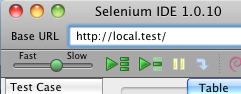
When you use Selenium IDE to play back the actions you've recorded on a web page (the clicks, the text input, etc.), you can control the waiting period between the execution of each command using the slider control on the left end of the tool bar:

With CFSelenium, the way that you control the time period between executions is with the setSpeed(string milliseconds) function.  Once you set the execution speed with this function, the time period between executions will remain set at that length until you use setSpeed again.  So you could set the speed once within the setUp() function of your MXUnit test case...

public void function setUp() {
    browserUrl = "http://local.test";
    selenium = new CFSelenium.selenium(browserUrl, "localhost", 4444, "*firefox");
    selenium.start();
    selenium.setTimeout(30000);
    selenium.setSpeed("1000");
}


...or you could alter the speed within a test case function...

public void function testFormValidation() {
    selenium.open("blah/index.cfm?event=addEditUser&userId=12");
    selenium.setSpeed("3000");
    //Now Selenium will wait 3 seconds between each of the following command statements
    selenium.type("firstName", "John");
    selenium.type("lastName", "White");
    //Setting the speed back down to 1 second
    selenium.setSpeed("1000");
    ....
}


Knowing how to change the speed in CFSelenium is crucial if you're testing any sort of operation that might take a second or two to update the page, like an AJAX call that populates a drop-down box:  if the next command in your test requires that drop-down box to be populated, but CFSelenium tries to run that command before the AJAX call completes, either your test will fail or you'll get an error message from Selenium.  The setSpeed function lets you slow down the execution speed so your AJAX calls have time to do their work before the next step in the test.

Monday, March 28, 2011

Taking Screenshots with CFSelenium

In addition to doing browser behavior testing, there are four functions in CFSelenium that you can use to capture screenshots.  The first two are:

captureScreenshotToString(): captures a shot of your current monitor display in .png format and returns the image data as a base-64 encoded string. **

captureScreenshot(string filename): captures a shot of your current monitor display in .png format and writes the image data to the filename passed in as the argument.  The filename parameter must be a full path ending in a filename, like "C:\Data\Screenshots\screenshot1.png." **


**These two functions work for all supported browsers, but because they take an image of the entire monitor screen, the browser window launched by *CFSelenium may be obscured by other windows on your monitor, and sometimes CFSelenium (or more specifically the Selenium Server) places the browser window in the lower half of the monitor, cutting off the view of the lower half of the window.

The other two screenshot functions capture only an image of the web page in the browser launched by CFSelenium, and they capture that page in its entirety: even if the page is long enough to scroll for several screens, all of that content will be captured.  While that can make for some very elongated images, it does capture all parts of the page.  But unlike the first two functions, these can only be used with certain browsers:


captureEntirePageScreenshotToString(): captures the entire web page in .png format and returns the image data as a base-64 encoded string.  Only works when used with Firefox.

captureEntirePageScreenshot(string filename, string kwargs): captures the entire web page in .png format and writes the image data to the filename passed in as the first argument.  The filename parameter must be a full path ending in a filename, like "C:\Data\Screenshots\screenshot1.png." The second argument is a string that modifies the way the screenshot is captured.  At the moment, it can only be used to alter the background of the HTML document object of the page.  An empty string can be passed as the argument, like so:

selenium.captureEntirePageScreenshot("C:\Data\Screenshots\screenshot1.png","");


The captureEntirePageScreenshot works when used with Firefox.  You call also use it with Internet Explorer with a helper program called snapsIE if you do the following:

  1. Go to http://snapsie.sourceforge.net/ and click on the "snapsie-0.2" link to download the file. The file is a compressed .tar.gz file, so you will need a program that can extract the files from that package (Mac OS X can open it as if it were a .zip file).

  2. Ignore the first of the bullet points on the http://snapsie.sourceforge.net/ page but follow the rest of them to register the snapsIE .dll file.

  3. The last of the bullet points alludes to the fact that the security restrictions regarding ActiveX controls can block the use of snapsIE. In experimenting with it, I ended up making the following changes to Internet Explorer's security settings under "Internet Options":

    • Automatic prompting for ActiveX controls: Disable

    • Run ActiveX controls and plug-ins: Enable

    • Script ActiveX controls marked safe for scripting: Enable

    (Even after making those changes, the first time I had CFSelenium try to capture a acreenshot with IE, I had to watch the test run and click on the prompt at the top of the web page and tell IE to allow the snapsIE script to run on all sites.)

  4. When you instantiate the CFSelenium object to run the test that will take the screenshots, make sure you use "*iexploreproxy" as the browser string instead of the regular "*iexplore"


...The ability to take screenshots with CFSelenium lets you use CFSelenium to test the look of your web pages in other browsers in addition to testing how the page behave. And if you have a need to generate a portfolio of screenshots for a client, using the captureEntirePageScreenshot function could save you some time with that task.

Sunday, March 27, 2011

Using CFSelenium With The Most Common Browsers

When using CFSelenium to send Selenium commands to the Selenium Server, you start off by instantiating CFSelenium as an object.  If you're using the ColdFusion 9 version, you would instantiate it with a statement like this:

browserUrl= "http://www.cnn.com";
selenium = new CFSelenium.selenium(browserUrl);


If you're using the ColdFusion 7 or 8 version, you might instantiate it like so:

<cfset var browserUrl= "http://www.cnn.com" />
<cfset variables.selenium= CreateObject("component","CFSelenium.selenium_tags").init(browserUrl) />


In both cases, you're calling the init() function of the respective CFSelenium .cfc file. The init() function can take 4 arguments:

  • browserURL: (required) the URL of the website (just the address to the webroot, not to any subfolders) you want to run the Selenium commands against.

  • host: (optional) the IP address or hostname of the machine running the Selenium Server instance CFSelenium will be communicating with. The default value is "localhost"

  • port: (optional) the port number used to communicate with the Selenium Server instance. The default is 4444.

  • browserStartCommand: (optional) a string that tells Selenium which web browser on the machine running the Selenium Server instance to use. The default value is "*firefox"

By default, CFSelenium uses Firefox to conduct the browser tests (which makes sense because most of the time you'll use the Selenium IDE Firefox plugin to create your tests). In order to have CFSelenium run a test case through a different browser, you'll have to pass a different browserStartCommand string into the init() function.  You can see a list of the different browserStartCommand strings in this post on StackOveflow:  http://stackoverflow.com/questions/2569977/list-of-selenium-rc-browser-launchers.

Sometimes it's just that simple, but sometimes it's not...and when it's not, it can be a real pain to figure out.  WIth some trial and error, I was able to get Selenium Server/CFSelenium to interact with all of the browsers I had installed on my Windows and Macintosh laptops.  Here's what I had to do it each case:

Firefox

Windows 7: The typical browser string shorthand for starting Firefox ("*firefox") only works if Selenium Server can use your operating system to find out where the browser executable file is. Because Firefox isn't documented in my Windows 7 PATH envionment value, I had to add the full path to the firefox.exe file in the browser string. So my CFSelenium instantiation statement ended up looking like this:

selenium = createObject("component","CFSelenium.selenium").init("http://www.cnn.com","localhost", 4444, "*firefox C:\Program Files\Firefox\firefox.exe");

Mac OS X: The default/regular Firefox browser string "*firefox" worked just fine.

Google Chrome

Windows 7: The regular "*googlechrome" browser string worked fine.

Mac OS X: The regular "*googlechrome" browser string worked fine.

Safari

Windows 7: Safari comes with a pop-up window blocker that is turned on by default, and while on it will prevent the Selenium Server from doing anything beyond opening the browser window. To turn off that blocker in the Windows version, click on the gear icon in the upper right corner and click on "Block Pop-Up Windows" to uncheck it. Once I did that, I was able to run Safari using the "*safariproxy" browser string (it wouldn't take the regular Safari browser string) and specifying the location of the Safari executable file (similar to what I did with Firefox).

Mac OS X: Once I turned off the pop-up blocker (by clicking on "Safari" in the menu bar and unchecking "Block Pop-Up Windows"), I was able to run Safari with the normal "*safari" browser string>.

Opera

Windows 7: Although Opera 9 was the last version of Opera officially supported for the Selenium Server, I was able to run Opera 11.01 using the "*opera" string and specifying the location of the opera.exe file.

Mac OS X: This was the hardest one to figure out. Here's what I ended up doing:

  • I had to define a proxy server in Opera that would accept the commands coming from the Selenium Server using the following steps:

    1. In the Opera menu bar, I clicked on "Opera" and then "Preferences".

    2. In the Preferences window, I clicked on "Advanced", then choose "Networks" from the column of options on the left, then clicked on the "Proxy Servers..." button.

    3. In the Proxy Servers window, I put a checkmark next to "HTTP", entered "localhost" in the text box to the right of the "HTTP" checkbox, and entered "4444" in the corresponding Port box.

  • I could not use any of the Opera-specific browser strings. I ended up having to use the "*custom" browser string and specify the location of the Opera executable...which is NOT the "Opera.app" listed in the Application folder but a file within that application package/folder:

selenium = createObject("component","CFSelenium.selenium").init("http://www.cnn.com","localhost", 4444, "*custom /Applications/Opera.app/Contents/MacOS/Opera");

Even after all that, the behavior was still a bit flaky. Sometimes Opera would start with a dialog box asking if you wanted to restore the last session (as if Opera had crashed after the last session). Sometimes Selenium wouldn't proceed past the "Speed Dial" Opera startup page: telling Opera to use an actual homepage helped but that setting change didn't seem to take effect upon the next startup of Opera but rather the startup after that.

Internet Explorer 8

Windows 7: I wasn't able to use the regular "*iexplore" browser string, but "*iexploreproxy" worked fine (and with IE being part of the OS, I didn't need to specify the path to the executable).

Mac OS X: If you're running virtual machine software (I use VMWare Fusion) on your Mac in order to run a Windows environment, you can run your CFSelenium tests against IE running in that VM by doing the following:

  • Place a copy of the Selenium Server .jar file on your VM instance of Windows just as you did when you installed CFSelenium on your Mac.

  • Find out what the IP address of your VM instance is. The easiest way to do that is to open a command-line interface in Windows (by clicking the Start button, choosing "Run...", typing "cmd" in the text box and hitting the Enter key), and typing "ipconfig -all" to get the current network statistics for the Windows instance: you want the address under "IP Address".

  • Use the command-line interface to start the Selenium Server on your Windows instance (just as you would do on your Mac).

  • Instantiate CFSelenium using the IP address of the Windows VM and "*iexplore" as the browser string. So if the IP address of your Windows VM is 172.16.9.9, the instantation statement would look like this:

selenium = createObject("component","CFSelenium.selenium").init("http://www.cnn.com","172.16.9.9", 4444, "*iexplore");

When you run CFSelenium against the Selenium Server on your Windows VM, you'll see the Selenium Server on the VM doing all the work, even though the test results will be reported back to whatever browser you're using to run the test on the Mac side.

...This was how I got all the browsers to run with CFSelenium on my computers. It may be different for your computer(s), but hopefully the information I've provided here will at least be of some help.