Tuesday, June 29, 2010

Quick Tip: Use jQuery live() Function For Links in JavaScript-Powered Data Tables

NOT doing the tip that I'm about to share has bitten me twice now, so I'm putting this out there as a reminder to myself as well.

The jQuery live() function is an extremely useful function to have when you're adding or removing page elements that have jQuery event handlers assigned to them because using live() ensures that any new element that matches the live() selector gets that event handler automatically.

It's easy to remember to use live() when you're writing your own code that adds and removes DOM elements, but when you're using a plugin that does the adding and removing behind the scenes, you might not think about it.  In one of my applications, I apply the jQuery DataTables plugin to my HTML tables so that the users can sort and filter the data in the tables.  Included in each row are hyperlinks that trigger certain actions via JavaScript/jQuery. 

When I originally assigned the event handlers to these links, I simply used the "click" event handler on them.  The links worked perfectly if they were displayed as part of the initial page load, but any links belonging to rows that appeared later (as the result of a sort, filter, or pagination event in the plugin) did not work because the link elements were actually added by the plugin, and hence did not have the event handlers assigned to them.

In short, if you're using one of the many plugins to enhance HTML tables, and you have elements in each row that have jQuery events assigned to them, make sure you use the live() function to assign those event handlers.

Monday, June 28, 2010

My First Published Android App: NoteToSelf

I haven't been blogging much lately, but that's partly because I was on vacation for a week and partly because I was working on this:

https://play.google.com/store/apps/details?id=org.swartzfager.NoteToSelf

It's a fairly simple app built with the standard Android API, but it meets MY need for a note/reminder list that is right there on my Android home screen and lets me see all of my reminders without having to go into the application. And being able to dictate my reminder (I put in the dedicated dictation button because my Swype keyboard doesn't have a key for dictation like the stock Android keyboard does) makes it easy to add a quick note if you can tolerate a mistranslation here or there.

This version is free, so if you have an Android device running 2.1 or higher, feel free to check it out.

Monday, June 14, 2010

Preventing CSRF Attacks Using Event-Types in Model-Glue

A cross-site request forgery (CSRF) occurs when a hacker takes advantage of the fact that users don't always log out of the websites and web applications they visit. The hacker creates a URL or a form on a website they control that passes valid data to a valid destination on the target website and hopes that a user who is still authenticated to that target website clicks that malicious URL or form. If such a user falls into the trap, the target website will process the request just as if the user had executed the action within the target website under normal circumstances.

One common method for preventing CSRF attacks is to generate a unique value every time a user visits a form on the website and store that value both within the user's session and within the form itself as a hidden field. When the form is submitted, the value in the form is checked against the value stored within the user's session, and if they don't match the form submission isn't processed. The next time the user encounters a form (even if it's the same form), a new unique value is generated. Without a way of knowing what that unique value is at any given time, the hacker cannot build a form or construct a URL that simulates a legitimate request, and the attack fails.

Rather than have to remember to create these unique values and include them within every form (or every URL that executed some sort of data operation), and then check the validity of the submitted value on each processing page, I wanted to see if there was a way I could build CSRF security into the structure of my Model-Glue applications.

First, I wrote two new controller functions in my authentication/authorization controller CFC:

The secureTransmissionURL() function looks to see if there is a variable named "token" stored within the event object (for those unfamiliar with Model-Glue, the event object serves as a container for all of the variables associated with the request, including form and URL variables).  If no token variable exists in the requet, a variable named "token" is created or updated within the session scope and given a unique UUID value.

In the final line of the secureTransmissionURL() function, a new variable called "secureMyself" is created within the event object, and is given a value that serves as the starting point for any URL I want to protect against CSRF attacks within my Model-Glue application. This line deserves a bit of background information...

In Model-Glue (as with many of the ColdFusion frameworks), all requests run through the index.cfm page, and you dictate how the request should be routed by adding a particular variable (called the "eventValue" variable in Model-Glue) to the URL. In Model-Glue, the default name for that variable is "event," so if you kept that default, the URLs you would use to navigate within your Model-Glue application would look like this:

index.cfm?event=deleteRecord&recordId=12

Because it is possible to change that eventValue variable name from "event" to something else ("action", "goto", etc) with a simple change to the Model-Glue configuration settings in your application, it's not safe to hard-code "index.cfm?event=" into your URLs in your pages. So the standard practice is to use an event variable automatically provided by Model-Glue called "myself" to build your URLs. So instead of writing out "index.cfm?event=mainMenu", you would do something like this on your web page:

<cfset deleteRecordURL= event.getValue("myself") & "deleteRecord">
<cfoutput>
...
<a href="#deleteRecordURL#&recordId=12">Delete record 12</a>
...
</cfoutput>

(Note: normally the name of the event/event handler, in this case "deleteRecord", would actually come from an event variable as well, but I wanted to keep my example simple)

The "secureMyself" variable created in that final line of secureTransmissionURL() serves as a CSRF-secured alternative to the "myself" variable provided by Model-Glue. It adds the hashed value of the UUID value stored in the session scope to the "token" URL variable in front of the eventValue variable in the URL string, allowing me to use "secureMyself" to build my URLs in place of "myself" where needed (note: I would still use "myself" to build URLs that don't directly process data, such as a URL that sent the user to a menu page):

<cfset deleteRecordURL= event.getValue("secureMyself") & "deleteRecord">
<cfoutput>
...
<a href="#deleteRecordURL#&recordId=12">Delete record 12</a>
...
</cfoutput>

When the secured URL is rendered by ColdFusion, it ends up looking something like this:

index.cfm?token=524606212847B725A8AD313DD466CDCF66F8FC22B49DC31D525D51FC33B1E297&event=deleteRecord&recordId=12

The second function, the validateTransmissionURL(), is meant to be executed prior to processing a CSRF-secured page request. It checks to see if a token variable was included in the request, and if so it checks if the value of the submitted token matches the hashed value of the token variable stored in the session. If either of those conditions fail, a result of "invalidTransmission" is added to the event object, which effectively prevents the request from proceeding to the code that processes the request (that interacts with your persistent data).

After adding these two functions, I then incorporated them into my application using the following two event types:

If you're unfamiliar with event types in Model-Glue, I encourage you to read the documentation on the Model-Glue wiki. In my application, all of my event handlers that are only accessible to the user after they've authenticated/logged in are wrapped with the "permitted" event type defined above. By adding a message broadcast that calls my secureTransmissionURL() controller function to that event type, I ensure that the "secureMyself" event variable is available to use on all of my authenticated view pages.

The "validateTransmission" event type, which will make sure that the submitted URL contains the proper token value, will be applied only to my event handlers that process a form submission or execute a database transaction based on URL variables submitted in the request.  If the token is missing or incorrect, Model-Glue redirects the action to the "invalidTransmission" event handler, which will react to the possible CSRF attack. My "invalidTransmission" event handler presents an normal error message to the user (as it's the user, not the hacker, that will see the result of the attack) but notifies me that a possible CSRF attack has occurred.

Once I had these controller functions and event types in place, all I needed to do to secure my forms and hyperlinks against CSRF attacks was to use the "secureMyself" event variable to build the URLs for those forms and hyperlinks and to add the event type "validateTransmission" to those event handlers that processed submissions from those forms and hyperlinks.

If you want to learn more about securing against CSRF attacks, I would recommend that you read some of the blog posts that helped me understand CSRF attacks:

http://shiflett.org/articles/cross-site-request-forgeries

http://www.mollerus.net/tom/blog/2009/01/an_easy_block_for_crosssite_request_forgeries_csrf.html

http://www.12robots.com/index.cfm/2008/8/25/Request-Forgeries-and-ColdFusion--Security-Series-9

http://www.12robots.com/index.cfm/2009/2/9/Enhancing-Request-Forgery-Protection--Security-Series-91

Thursday, May 20, 2010

Quick Android Development Tip: Reusing Layouts With Includes

My last few Android development posts have been kind of long (took long to write anyway), so here's a short one...

When you develop websites, you often end up with a lot of pages that all share a certain block of layout or content. You would typically handle this by making a single separate file for that global content and pulling it into the other pages via some sort of include mechanism (virtual include, <cfinclude>, etc.).

Well, you can do the same thing in Android: you can create a separate layout XML file (say, for a header or a menu bar) and then include it in your other layout files, like so:


Wednesday, May 19, 2010

Defining Other Global Resources in Your Android Application

In my last post, I talked briefly about how the R.java file, a resource file located in the "gen" folder of your Android application project that is automatically generated and updated by Eclipse and serves as a resource map. My example code demonstrated how you could reference layout.xml files via the R.java file and how Eclipse would register the id of the UI objects within the R.java file as well.

I also mentioned that the layout XML files for your Android app are located in a "layout" folder within the "res" ("resources") folder.  There are other folders under the "res" folder as well, and the content within those folders is also registered with the R file, allowing you to access those resources within your Android code.

Here's a screenshot of what the "res" directory of my current Android project looks like:

The first three folders are "drawable" folders where you put any images you want to use in your application. As I alluded to in an earlier post, Android supports different screen resolutions through the concept of density-independent pixels, in that higher-resolution screens have a larger number of pixels per inch than a lower resolution screen (you can read more about how that works on the "Supporting Multiple Screens" page on Android Developer website).  The three different drawable folders allow you to have three different copies of the same graphic (with the same filename), one for high density/resolution screens ("hdpi"), one for medium density screen ("mdpi"), and one for low density screens ("ldpi").  So if I place a copy of a graphics file called "blueBox.png" in each of the drawable folders, I can reference it in my Android code via the filename (minus the extension) like so:

R.drawable.blueBox

...and (unless I've specifically said my application will only work with a certain pixel density) Android will take care of figuring out which copy of the image file it should display.

We can skip the "layout" folder since I've already talked about how to reference layout files in my previous post, so that leaves the "values" folder.

The first file in my "values" folder is colors.xml.  In Android, you're encouraged to record the color codes of your UI elements in this file (which you have to create).  Here's what the XML looks like:

<?xml version="1.0" encoding="utf-8"?>
<resources>
    <color name="pageColor">#fff</color>
    <color name="normalTextColor">#000</color>
    <color name="listItemColor">#333</color>
    <color name="goodColor">#009900</color>
    <color name="badColor">#ff0000</color>
</resources>

...so if you wanted to make a view object in your layout have the "pageColor" background (white, in this case), you'd reference it in your layout XML like so:

<ListView android:id="@+id/android:list"
  android:layout_width="wrap_content"
  android:layout_height="wrap_content"
  android:background="@color/pageColor" />

The "@color" sign tells Android that we're referencing a color name registered in the resource file, so it knows how to retrieve the value. And again, you can reference these color values in your code (in case you want to change the color of an element or some text in response to some change or condition):

mStatusText.setTextColor(R.color.goodColor);

The second file in the "values" folder is strings.xml. As you can probably guess, it's meant to hold string values that you might use in one or more places in your application, things like screen headers or form labels. But it can also be used to define arrays of strings for use in scrollable lists or drop-down controls (like a list of U.S. states). Here's what it looks like:

<?xml version="1.0" encoding="utf-8"?>
<resources>
    <string name="app_name">To-Do List</string>
    <string name="empty_list_message">There are currently no items</string>
    <string-array name="priority_choices">
     <item>High</item>
     <item>Normal</item>
     <item>Low</item>
    </string-array>
    <string name="delete_button_text">Delete</string>
    <string name="save_button_text">Save</string>
</resources>

You would reference a string resource much as you would a color resource, using "@string/app_name" as an attribute value in your layout XML or referencing the string programmatically using "R.string.app_name". To reference a string array, however, you'd use "R.array", as in "R.array.priority_choices", in your Android code (I'm not sure if there's a scenario in which you could reference a string array in your layout).

Finally, there's one more type of resource you can define in an XML file in the "values" directory: styles. I haven't used styles in any of my Android projects yet, but according to the "Applying Styles and Themes" page on the Android developer website, you can create a <style> block in XML that sets values for various visual attributes of view objects (size, typeface, font size, etc.) and then apply that entire set of attributes to a view object in your layout.

Wednesday, May 12, 2010

Interacting With UI Objects From the Layout in an Android Activity Object

In my last post, I promised to show how I would attach my simple example layout to an Activity object and make a change or two.

Here's the layout XML again:

Every Android project contains a "res" (reources) folder, which contains a number of subfolders, including one called "layout." This is the folder where you store your layout XML files. You can only use lowercase letters, numbers, periods, and underscores in your layout XML file name (don't know why, that's just the rule), so I'll call mine example_layout.xml.

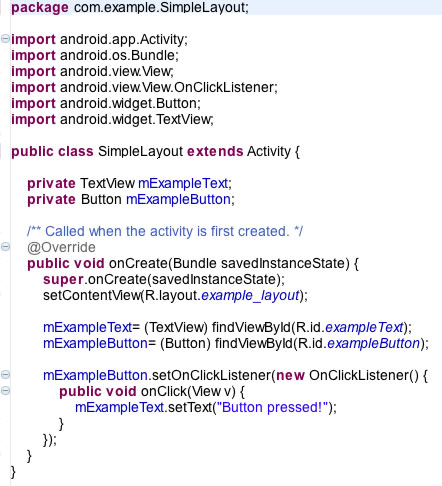
Now that that is out of the way, time to start looking at the activity class, which I've called SimpleLayout.  Here it is in its entirety as a screenshot from Eclipse:

Every class file starts out with a package statement and then import statements to import any Android or Java classes you need to use in your activity class. In this case, all of the imported classes are from the Android API.  After the import statements comes the class declaration:

public class SimpleLayout extends Activity (

...which simply says that the SimpleLayout class is a subclass of the Android Activity class, and therefore inherits all of the properties and methods normally found in an Activity object.

After that comes any member variable declarations. Here I declare two private variables, a TextView object called mExampleText and a Button called mExampleButton. They're not assigned a value; they're just declared.

  private TextView mExampleText;
  private Button mExampleButton;

The real action starts with the onCreate method. In Android, when an activity component (a UI screen) is created in memory for the first time, the onCreate method of the activity is called and the code within it is executed. This is when I want to pull in my layout containing your UI objects, so first I make a call to the original onCreate method inherited from the Activity class, and then I call the setContentView method of the Activity class:

public void onCreate(Bundle savedInstanceState) {
    super.onCreate(savedInstanceState);
    setContentView(R.layout.example_layout);

Note the parameter that's passed into the setContentView method: "R.layout.example_layout". The "R" references the R.java file found in the "gen" folder of every Android project. The R.java file is automatically generated and updated by Eclipse and serves as a resource map for various aspects of the project. The moment I created the example_layout.xml file in the "layout" directory, Eclipse added a reference to that file to R.java as an int variable under the "layout" static class, and I can pass that reference to setContentView.

I make use of the R.java file once again in the next two lines:

    
    mExampleText= (TextView) findViewById(R.id.exampleText);
    mExampleButton= (Button) findViewById(R.id.exampleButton);

Now that the layout has been processed by setContentView, I can assign the TextView and Button objects from my layout to the two member variables I declared earlier. Looking back at the layout XML file, you'll note that both the TextView and the Button were assigned id values using the "android:id" attribute:

        
        <TextView android:id="@+id/exampleText"
        ...
        <Button android:id="@+id/exampleButton"
        ...

The "@+id/" part of the id attribute basically tells Android/Eclipse that we want references to these objects added to the R.java file, keyed to the id values provided ("exampleText" and "exampleButton"). So now referencing those view objects in the code of our SimpleLayout class can be accomplished by simply calling for the object by id using the findViewById method (another method inherited from the Activity class).

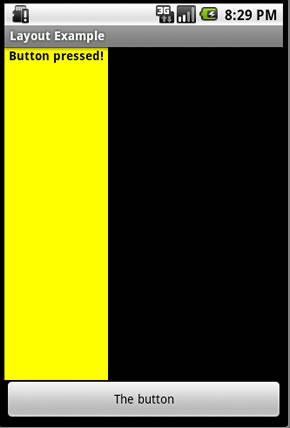
Now that I have programmatic references to the TextView and Button objects from my layout, I have access to the properties and methods of those objects and can act upon them. The last three lines of the onCreate method basically tells the Button object to change the text in the TextView object when the Button is pressed:

    
    mExampleButton.setOnClickListener(new OnClickListener() {
        public void onClick(View v) {
            mExampleText.setText("Button pressed!");
    }

And there you have it...

Tuesday, May 11, 2010

Creating Screen Layouts in Android Using XML

In my last post, I alluded to the fact that you can lay out your visual elements and controls on your Android application screens (your Activity objects) using XML. In this post, I'm going to give you a peek at what that XML looks like.

Here's an example of a super-basic layout XML file:


The first line is a typical XML declaration statement. The next line is the start of a LinearLayout view object, which serves as a visual container for other view objects. The first attribute of the LinearLayout tag defines the XML namespace (that has to be the first attribute of the first view object of every Android layout file you create). This LinearLayout container is set to fill the entire width and height of its parent container. In this case, since it is the main container object, it fills the whole screen. The "android:orientation" attribute is set to "vertical" which means that all of the child objects within the LinearLayout will be arranged vertically, even if one or more objects could fit together horizontally. Seeing the LinearLayout for the first time reminded me of the VBox and HBox layout elements in Adobe Flex, which also uses a domain-specific XML language to define screen layouts.

The second object in the layout (the first within the LinearLayout) is a TextView object, which as you might guess displays text. The "android:id" attribute assigns an id value of "exampleText" to the TextView object. The "android:layout_height" and "android:layout_width" attributes are set to "wrap_content." Normally, that means that the object will only be large enough to contain whatever's inside of it plus any padding, but it won't be in this case (which I'll explain shortly). The left and right padding are set to 5dip (density-independent pixels), a pixel scale used by Android to accomodate the different device screen sizes. The other attributes are fairly self-explanatory except for "android:layout_weight", which is something more easily explained by the examples coming up shortly.

The third and final object is the Button object, and you can guess what it does. Note that its "android:layout_width" attribute is set to "fill_parent", so it will be as wide as the screen is, even if the Android device is re-oriented from portrait to landscape.

Now, here's how the layout looks in the Android emulator that comes with the Android Eclipse plugin:


As I mentioned before, the height and width of the TextView object was set to "wrap_content", meaning that the TextView should be just as wide and as tall as it needs to be to enclose whatever is inside it plus the padding. The width is just long enough to contain the content horizontally, but why is it so tall? It's because of the "android:layout_weight" attribute. In Android, you cannot do percentage-based heights and widths like you can with HTML elements. Instead, you can assign layout weight values to view objects to assign a level of "importance." More important objects take up more of the available layout space, while less important objects take up the remainder.

The default layout weight of all view objects is zero. An "android:layout_weight" value of 1 denotes a more important object, while a value of 2 denotes an even more important object. Right now, both the TextView and the Button have a layout weight of 1, so they take up an equal amount of vertical space (because they are in a vertically-organized LinearLayout). If the Button's layout weight was changed to 0, however:


...then the Button's height gets reduced in deference to the importance of the TextView.

Personally, I'm still getting the hang of using layout weights. Fortunately, I don't have to run the layout through the emulator every time I want to see the results of my latest change to the XML. The Android plugin for Eclipse lets you view layouts either as raw XML or within a graphical layout view that lets you add view objects to your layout via drag-and-drop and see the results of the property changes you make as you make them:


It's not as nice as the layout designer in Flex/Flash Builder, but it's still nice to have.
In my next Android post, I'll show how to attach this layout to an Activity object, and make a few changes to the layout object programmatically.